Local bridge
Obsidian receives captures through 127.0.0.1 with a shared token.
 Vault Relay
Download beta
Vault Relay
Download beta
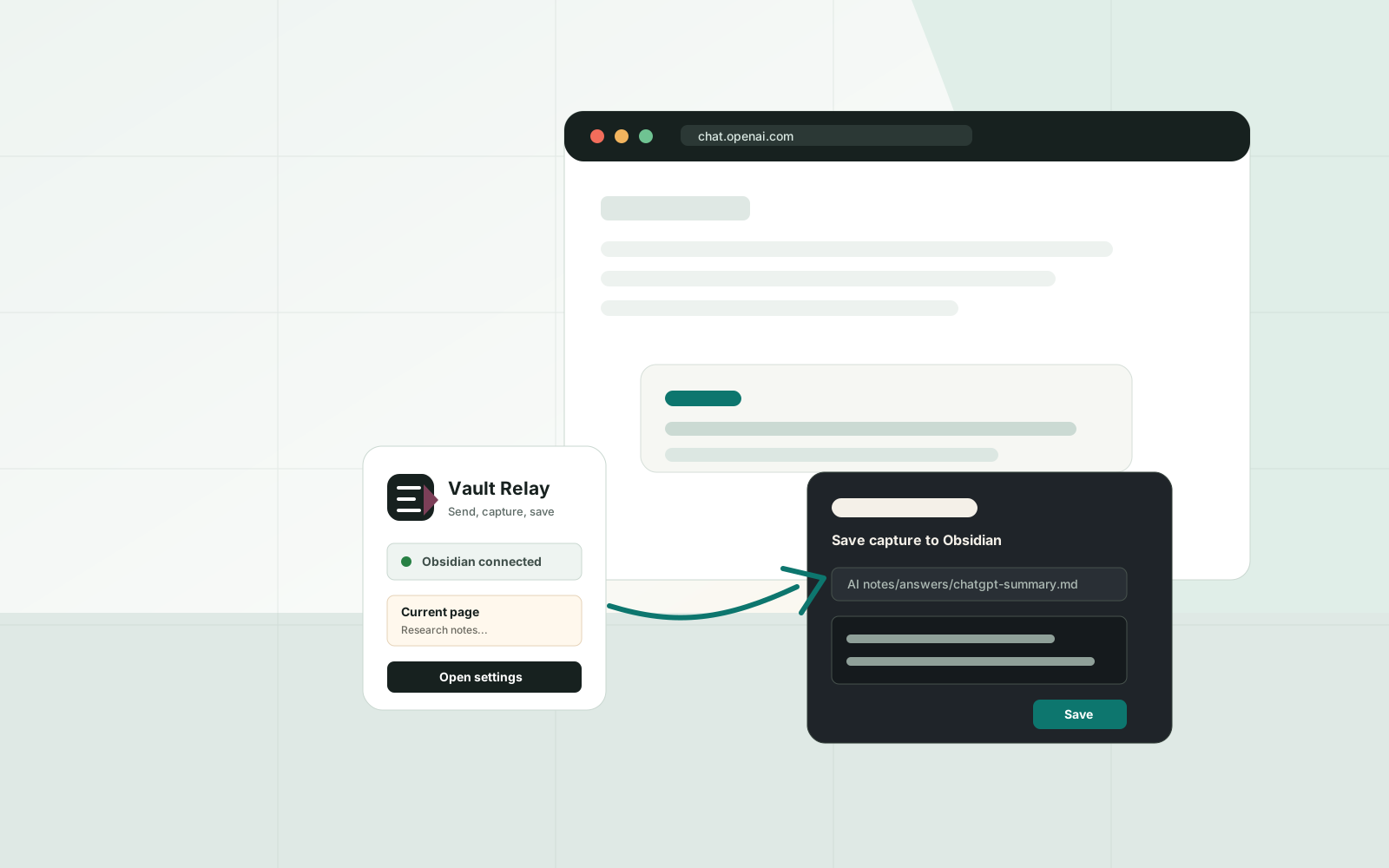
Browser capture for Obsidian
Save the useful parts of ChatGPT and the web into your vault, already shaped as Markdown.
A Chrome or Firefox extension talks to an Obsidian plugin over a local bridge, then asks you to confirm the folder, filename, content, and conflict behavior before a note is written.
Beta packages: Obsidian plugin, Chrome extension, and signed Firefox XPI.
Obsidian receives captures through 127.0.0.1 with a shared token.
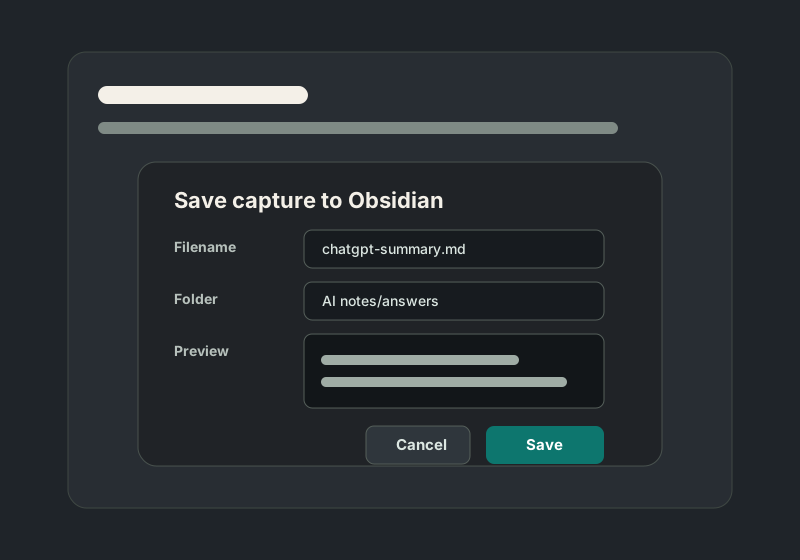
Confirm the note path, Markdown preview, and file conflict mode every time.
Capture the latest answer, export the visible chat, or send page context to a prompt.
No tracking scripts, account tokens, or hidden cloud service in the capture path.
Workflow
Vault Relay is built for the moment after an AI answer becomes worth keeping. It keeps the capture narrow, visible, and editable before it touches your vault.
Use the extension popup, context menu, or ChatGPT page button to choose what should become a note.
Reuse prompt rules, filename patterns, frontmatter settings, folders, and save behavior across captures.
Edit the generated Markdown, check the destination, and choose append, overwrite, or numbered copy.
The plugin saves locally, can open the created note, and keeps queued captures available in the inbox.
Product
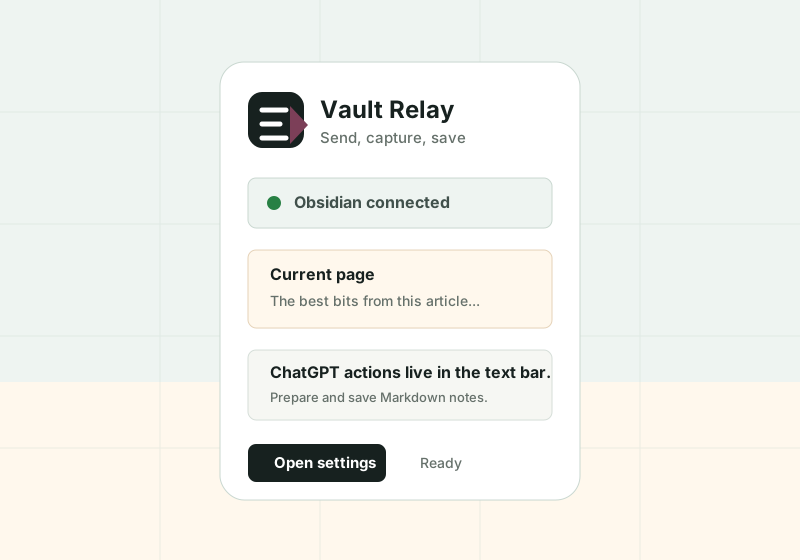
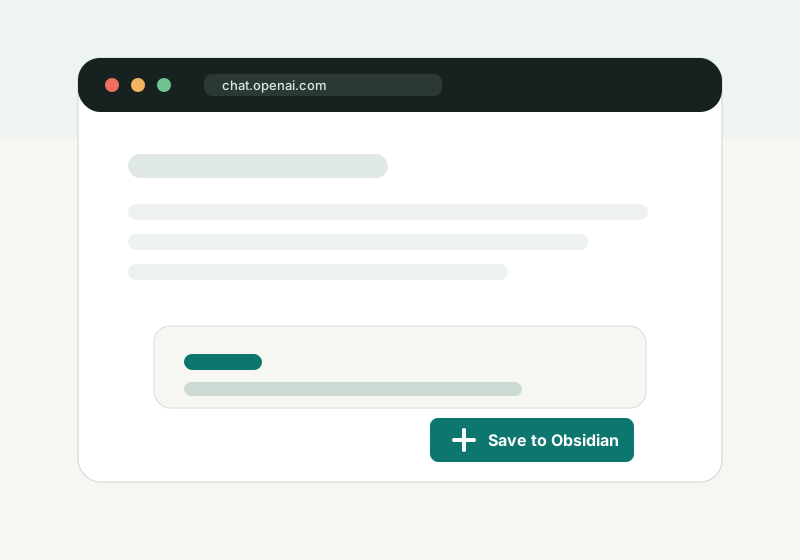
Install
The beta release ships as three packages. Install the plugin, copy the bridge token, then paste it into the browser extension settings.
Use the rolling beta-latest release while Vault Relay is pre-store.
Keep the Chrome extension folder on disk after loading it unpacked.
vault-relay-obsidian.zip.main.js, manifest.json, and styles.css
into <vault>/.obsidian/plugins/vault-relay/.
vault-relay-chrome.zip.chrome://extensions and enable Developer mode.vault-relay-firefox.xpi.http://127.0.0.1:27191.Capture options
ChatGPT UI automation can change. Vault Relay keeps manual capture and whole-thread export available so the workflow does not collapse when one selector goes stale.
Select text on a webpage and send it to Obsidian for review.
Prepare a prompt from page content and your saved Markdown rules.
Capture the latest assistant response after generation completes.
Save a Markdown transcript when the whole thread matters.
Highlight visible download buttons and optionally click them when enabled.
Use the inbox command to review captures that need a second pass.
Security
Vault Relay is designed to keep the browser-to-vault handoff understandable. It does not add analytics or ask for account tokens.
The Obsidian bridge binds to 127.0.0.1, not a public network interface.
Requests require Authorization: Bearer <token> or
X-Vault-Relay-Token.
Origins are checked when the browser provides them.
Vault Relay does not collect analytics, read ChatGPT cookies, or bypass login.
Prompt sending, capture saving, and download clicking are user initiated.
The download-button click path is disabled by default.
Help
Confirm Obsidian is open, the plugin is enabled, the local bridge is on, the URL is
http://127.0.0.1:27191, and the token matches the extension settings.
Open the Vault Relay inbox command in Obsidian, review the queued capture, then save it from the modal.
Use Export visible chat, then update completion or download selectors in extension settings if ChatGPT has changed its page.
Choose numbered copy, append, or overwrite in the Obsidian save modal before writing the note.
Use Firefox 142 or newer and install the signed vault-relay-firefox.xpi,
not the Chrome zip or an unsigned development package.
Ready for beta use
Install the local bridge, connect the browser extension, and turn the next useful response into a clean Obsidian note.